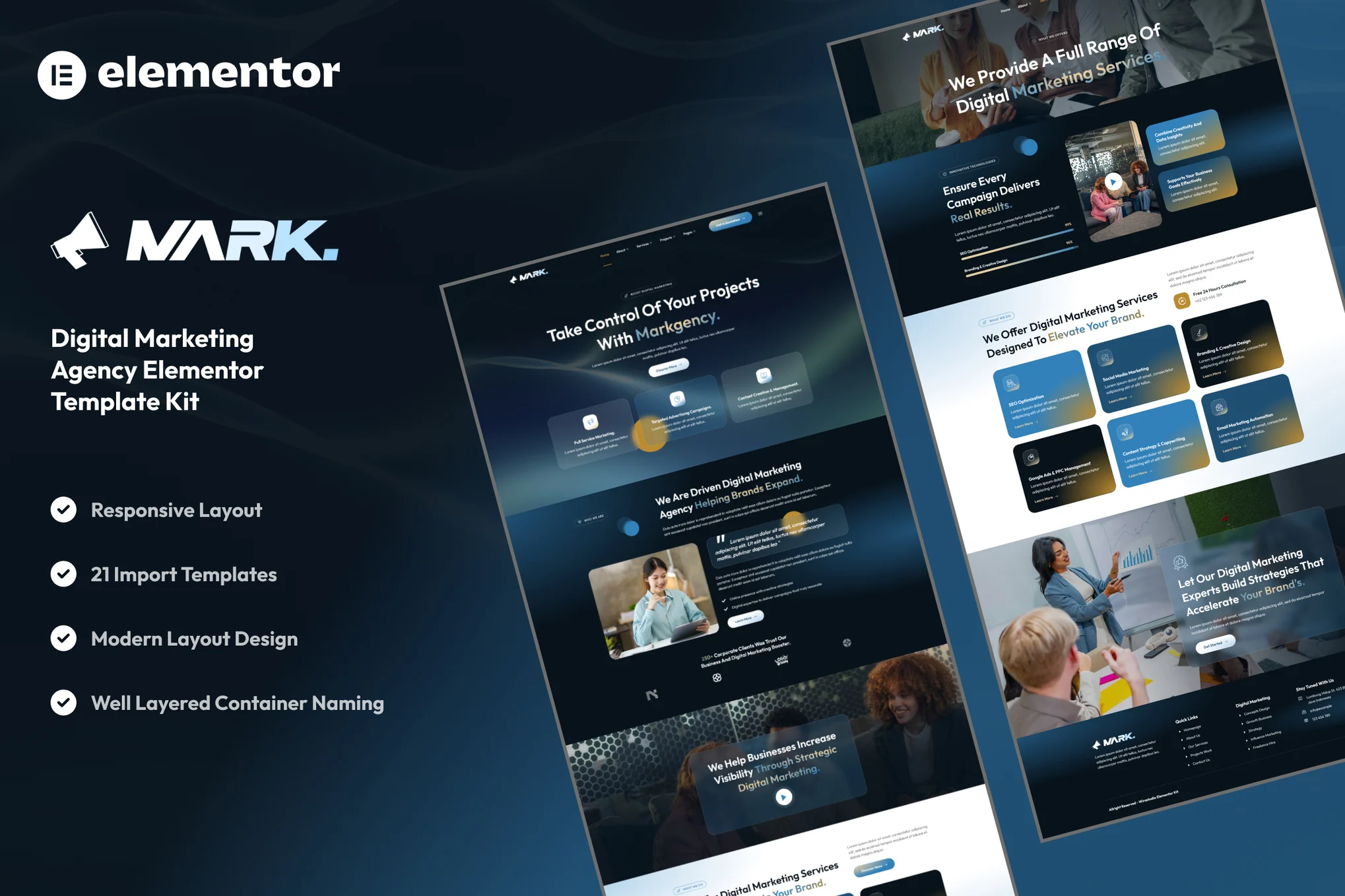
Markgency – Digital Marketing Agency Elementor Template Kit is a sleek, conversion-focused, and professional layout collection built for the Elementor page builder. Ideal for digital marketing agencies, SEO and PPC consultants, social media agencies, and creative studios, Markgency helps you promote services, showcase case studies, capture leads, and build authority.
With Markgency, you’ll get responsive and customizable templates that work with the free version of Elementor — no Elementor Pro required. Templates are optimized for performance and SEO to help you rank and convert visitors into clients.
## Key Features:
Conversion-Focused Design:
Hero CTAs, lead capture sections, case study templates, pricing tables, and trust signals.
Fully Responsive:
Designed to perform on desktop, tablet, and mobile.
Uses Free Elementor Only:
No need for Elementor Pro — everything works with the free plugin.
Optimized for Speed & SEO:
Lightweight structure and SEO-friendly markup.
Cross-Browser Compatible:
Compatible with Chrome, Firefox, Safari, and Edge.
No Pro upgrade required
## Template Pages Included:
- Home
- About Us
- Our Team
- Our Services
- Detail Service
- Our Pricing
- Our Projects
- Detail Project
- Contact Us
- FAQs
- Testimonials
- 404
- Blog
- Single Blog
- Global Style
- Block – Header
- Block – Footer
- Block – Off Canvas Content
- MetForm – Contact Form
- MetForm – Submit Question
- MetForm – Subscribe Form
- MetForm – Fast Quotation Form
## Template Features:
- No Pro Plugin Needed
- True No Coding Required
- Global Theme Style
Required Plugins installed with kit
- Elements Kit Lite
- MetForm
- The Plus Addons for Elementor
Template Kits are Different from WordPress Premium Themes.
THIS IS NOT a WordPress Theme. Template kits contain the design data for Elementor only, and are installed using the Envato Elements plugin for WordPress or directly through Elementor.
Here are steps to successfully install a template kit:
- Click the “Download Template” button to download your kit.zip file. Once downloaded, do not unzip it. If you use Safari browser you may need to ensure “Open safe files after downloading” is disabled in the browser preferences, to avoid automatically unzipping the file after download.
- In your WordPress Admin, go to Settings > Permalinks and ensure “Post Name” is selected
- Go to Appearance > Themes > Add New and ensure the Hello Elementor theme is installed and activated. Hello Elementor is one of the best themes for use with Elementor, not because it is pretty, but because it gives 100% compatibility. Installing This will prompt you to install Elementor if you haven’t already.
- Go to Plugins and ensure Elementor and “Template Kits Import” by Envato plugins are installed and at the latest version. If your kit requires Elementor Pro, it must be installed now and connected to your account.
- Go to Elements > Installed Kits and click Upload Template Kit Zip (or click your kit to view it)
- Check for the orange banner at the top and click “Install Requirements” to load any plugins the kit uses.
- Click the “import” button on the Global Kit Styles first. This will setup the site settings with the right fonts and preset .
- Click Import on one template at a time in the order shown. These are stored in Elementor under Templates > Saved Templates and are re-used from here.
Building Your Header and Footer
If you have Elementor Pro:
Go to Templates → Theme Builder.
Import or open the Header template.
Click Publish → Add Condition → Entire Site (or specific pages).
Do the same for the Footer.
If you’re using Elementor Free:
- Install and activate Elementor Header & Footer Builder plugin.
- Go to Appearance → Header Footer Builder.
- Create a new header, select Elementor Canvas and edit with Elementor.
- Insert the imported Header template from Envato.
Assign it to the entire site.
Repeat for Footer.
Creating pages
- Go to Pages and create a new page and click Edit with Elementor
- Click the gear icon at lower-left (or Top-center) of the builder to view page settings and choose Elementor Full Width and hide page title.
- Click the gray folder icon to access My Templates tab and then Import the page you’d like to customize.
- Once you have built your homepage, you can set it under Settings > Reading by selecting “A Static Page.”
Detailed Guide